MORPH Media Converter
Convert audio, video, and images to 33 output formats using the media engine in your browser
Guide reviewed 2 October 2026 by Milan Salvi. How we write and correct guides.
Open MORPH Media Converter →
Table of Contents
Overview
MORPH Media Converter is a universal media conversion tool that converts audio, video, and image files into 33 output formats entirely within your web browser. Powered by the media engine, the converter loads a ~32MB the media engine directly into your browser tab, enabling professional-grade media processing without uploading a single byte to any server. Once loaded, the media engine is cached by your browser for instant availability on future visits.
The converter supports three distinct operational modes. Convert mode handles single-file conversions with granular control over output quality, codec settings, and format-specific parameters. Batch mode lets you queue multiple files and convert them all at once to the same target format, saving significant time when processing large media libraries. Merge mode combines multiple audio or video files into a single output, perfect for joining podcast segments, music tracks, or video clips into one continuous file.
MORPH covers 11 audio formats (MP3, WAV, OGG, FLAC, AAC, M4A, OPUS, AIFF, AC3, AMR, WEBM), 13 video outputs (MP4, WEBM, AVI, MKV, MOV, FLV, OGV, 3GP, TS, MPG, GIF, plus MP3 and WAV audio extraction), and 9 image formats (PNG, JPG, WEBP, BMP, GIF, ICO, AVIF, TIFF, PDF). For image conversions, MORPH uses the browser's drawing surface for instant processing without needing the media engine at all, making image-to-image conversions nearly instantaneous regardless of file size. For audio and video, you get full control over quality via CRF (Constant Rate Factor) values from 18 to 36, audio bitrate from 64 to 320 kbps, and volume adjustment from 0% to 1000%. The remux mode allows instant format changes when no re-encoding is needed, completing in seconds what would otherwise take minutes.
Key Features
The Media Engine
Powered by the media engine compiled for the browser (~32MB). Runs the same industry-standard media processing engine used by professionals, directly in your browser. Cached after first load for instant subsequent use.
11 Audio Formats
Convert between MP3, WAV, OGG, FLAC, AAC, M4A, OPUS, AIFF, AC3, AMR, and WEBM audio. From lossy compressed formats to lossless studio-quality audio, every major audio format is supported.
13 Video Outputs
Convert to MP4, WEBM, AVI, MKV, MOV, FLV, OGV, 3GP, TS, MPG or animated GIF, or extract the sound as MP3 or WAV. Convert legacy formats to modern ones or produce compatible files for any device or platform.
9 Image Formats
Turn images into PNG, JPG, WEBP, BMP, GIF, ICO, AVIF, TIFF or PDF. Image conversions use the browser's drawing surface for near-instant processing without loading the media engine.
3 Modes: Convert, Batch, Merge
Convert mode for single files with full settings control. Batch mode to process multiple files to the same format in one operation. Merge mode to combine audio or video files into a single output.
Remux Mode (Instant)
Change container formats without re-encoding for near-instant conversions. When the source codec is compatible with the target container, remux skips the slow encoding step entirely.
Quality Controls (CRF / Bitrate / Volume)
Fine-tune output with CRF quality from 18 (near-lossless) to 36 (high compression), audio bitrate from 64 to 320 kbps, and volume adjustment from 0% to 1000% for normalizing or boosting audio levels.
Browser Drawing Surface for Images
Image conversions bypass the media engine entirely, using the browser's native browser drawing surface for instant results. Supports image resizing from 0 to 4096 pixels with automatic aspect ratio preservation.
How to Use
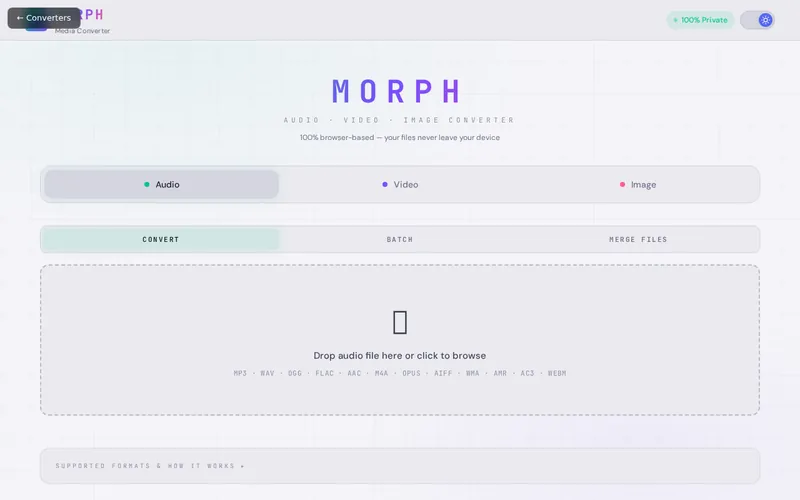
- Open MORPH Media Converter - Launch the converter in your browser. On first visit, the media engine compiled engine (~32MB) will download and cache. Subsequent visits load instantly from cache. No installation or account is required.
- Select Your Media Type - Choose between Audio, Video, or Image using the media type selector at the top. This filters the available input and output formats to only those relevant to your chosen media type.
- Upload Your File - Click the upload area or drag and drop your file into the converter. For Batch mode, you can add multiple files at once. For Merge mode, add two or more files in the order you want them combined.
- Choose Your Target Format - Select the desired output format from the dropdown menu. Audio offers 11 formats (MP3, WAV, OGG, FLAC, AAC, M4A, OPUS, AIFF, AC3, AMR, WEBM), video offers 13 (including MP3 and WAV audio extraction), and images offer 9 formats.
- Adjust Quality Settings - For video, set the CRF value (18 for near-lossless, 23 for balanced, 36 for maximum compression). For audio, choose a bitrate between 64 and 320 kbps. Adjust volume from 0% to 1000%. Enable remux mode for instant container-only changes.
- Start the Conversion - Click the Convert button to begin processing. A progress indicator shows the conversion status. Audio and video conversions use the media engine, while image conversions use the browser's drawing surface for near-instant results.
- Download Your Converted File - Once the conversion completes, click the download button to save the output file to your device. In Batch mode, each converted file gets its own download button. All processing happens locally -- nothing is uploaded anywhere.
Frequently Asked Questions
Privacy & Security
MORPH Media Converter is built on the zero-data-upload principle. The entire media engine runs locally in your browser via compiled browser code -- the same technology that powers desktop video editors, compiled to run safely inside your browser's sandbox. Your audio files, video files, and images are never transmitted to any server. There is no upload step, no cloud processing, and no temporary server storage. All conversion happens in your device's memory, and all data is released when you close the tab. The media engine compiled binary itself is fetched once and cached by your browser, requiring no further network requests during conversion. Whether you are converting a private voice recording, confidential video footage, or sensitive documents, MORPH ensures complete privacy by design.
Ready to convert your media files? MORPH is free, private, and runs entirely in your browser.
Open MORPH Media Converter →Related

Last Updated: March 26, 2026